

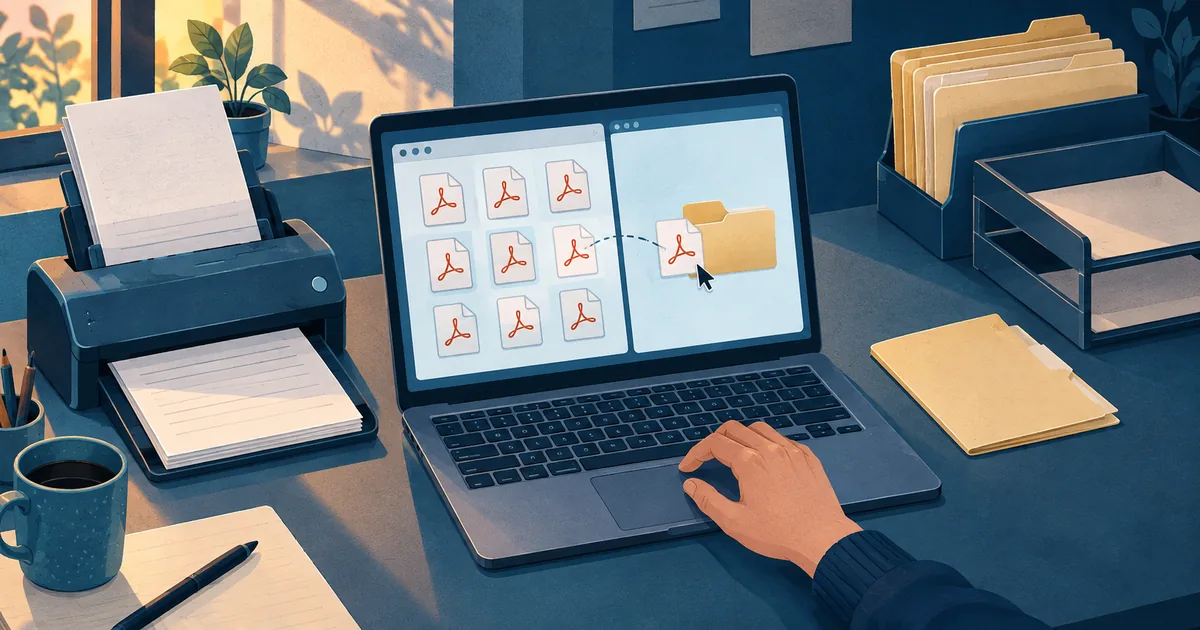
Somewhere in your office there is a folder full of files named Scan_0042.pdf. That name tells you exactly one thing, which is that there were 41 before it.
Someone opens each one, figures out what it is, types a better name, and drags it to the right client folder. Then they do it again. A W-2, a lease, an insurance card, an invoice, a signed agreement. It takes a minute or two per file, nobody tracks it, and it never shows up on a list of problems because it never breaks. It just eats the afternoon.
It was also the subject of the first inquiry that came in through this site, so it's not a hypothetical.
Why this is still a manual job
Most offices aren't missing software. They have plenty of it. A scanner saves files to one place, email attachments land in another, the document system lives somewhere else, and the accounting or practice software sits off to the side. None of them hand files to each other cleanly, so a person ends up being the connection between them.
The numbers that exist back that up. Intuit's 2026 survey of 725 accounting professionals found the average firm uses 10 apps to run the practice, and accountants report losing about 5 hours a week moving, re-entering, or reconciling information across those tools. Intuit sells one of those tools, so read it as a vendor survey, but it matches what anyone who has worked a front desk already knows.
A separate 2026 survey from Smallpdf, a PDF software company, asked 1,000 US professionals about file naming. 37% admitted they've copied a file and forgotten to rename it, and 51% said they've redone work because they couldn't find the original. That's how a folder ends up holding three files called "Copy of Agreement."
One note on the statistics you'll see elsewhere. The most-quoted numbers about lost and misfiled documents, the ones usually credited to PwC or the Wall Street Journal, couldn't be traced to any original study while researching this post. The most famous statistic about lost documents appears to have lost its own source. They're left out here on purpose.
What the fix actually looks like
AI can now read a scanned document, work out what it is and who it belongs to, and suggest a file name and a folder. That part works. The part that matters is what happens next. A person looks at the suggestion and approves it, edits it, or rejects it. Nothing gets filed without a human sign-off.
The person doesn't disappear. Their job changes from doing every step to checking one. That's the whole idea, and it only works if you set it up in the right order.
Step 1. Pick one naming rule
AI can only suggest a good name if someone has decided what a good name is. Most offices have never written theirs down, which is why the shared drive looks the way it does.
A rule that works for most small offices puts the date first, then the client, then the document type.
2026-10-29_ClientName_W-2.pdf
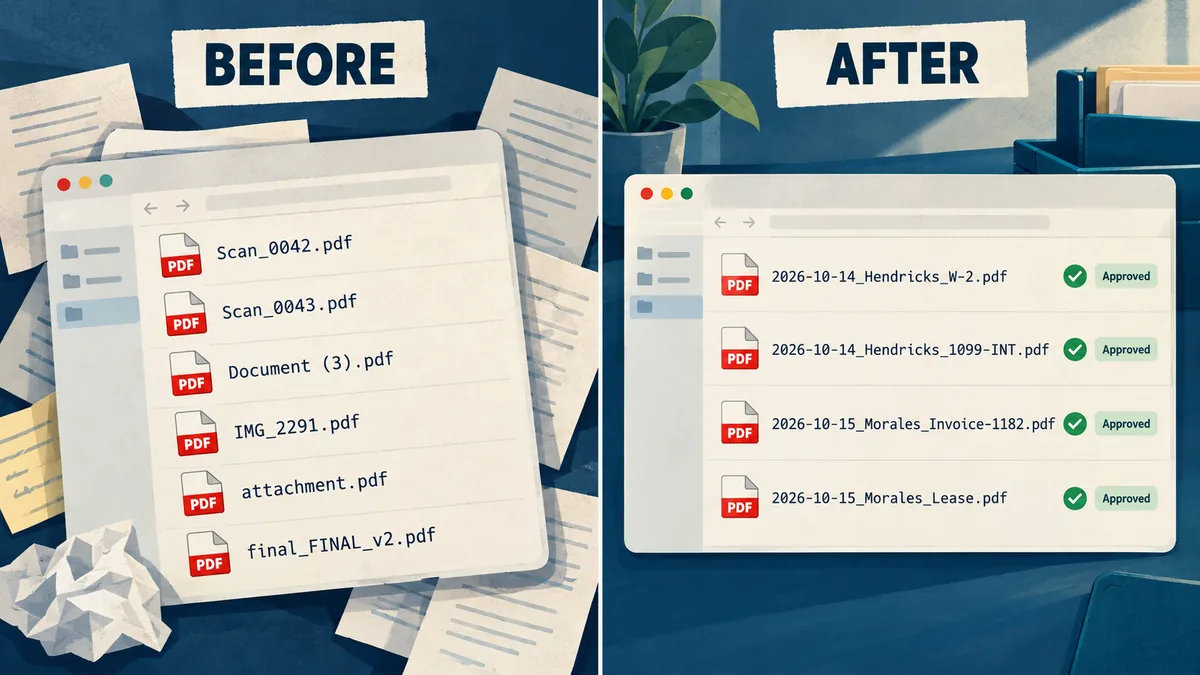
- Date first, in YYYY-MM-DD order, so files sort by date on their own.
- No periods in the name except before "pdf." A period in the middle can make some systems think the file type is ".2026."
- A fixed list of document types. Write down the 15 or 20 kinds of documents you actually get, and require the AI to choose from that list. People who let AI invent its own labels report ending up with both "Bill" and "Billing" a few months later, which defeats the purpose.
This step costs nothing, needs no software, and on its own fixes a surprising amount of the mess.
Step 2. Clean up what goes in
Before any AI reads a document, software has to turn the scan into text. That step is called OCR, and in real offices it is the weak link far more often than the AI is. A faded receipt, a colored form, or a crooked scan produces bad text, and every step after that inherits the mistake. People testing these tools report dates read a decade off and 8s read as 6s. If a person has to squint at it, the software is guessing.
- Scan straight and clean. Clear originals, flat on the glass or fed squarely.
- One document per file. If someone scans a stack of 12 different documents as one PDF, no tool can name it well. Many scanners can split a batch automatically using blank pages or barcode cover sheets. Turn that on.
- Check what your scanner already does. Some scanner software already reads the page and suggests a name. ScanSnap Home, for example, recommends file names using company and shop names found on the document, and its PC version learns from the edits you make.
Step 3. Let AI suggest, and keep a person approving
Here the tools start to differ, and the differences matter. Some suggest a name but don't move the file. Some move the file but don't rename it. Some do both and skip the human entirely. The table below covers what's available as of late October 2026.
| Tool | Suggests a name? | Picks the folder? | Person approves? | Worth knowing |
|---|---|---|---|---|
| Already built into software you may pay for | ||||
| OneDrive (Copilot Suggested Rename) | Yes, three options | No | Yes, you pick one | Announced for OneDrive on the web, rolling out starting June 2026 |
| Google Drive (Organize My Files) | No | Yes | Yes, nothing moves until you approve | Business Standard and up; works on loose files in My Drive |
| SharePoint autofill columns | No, fills in info columns | No | No built-in step | Pay-per-use; Microsoft says to check results; best under 65 pages |
| ShareFile AI file renaming | Yes | No | Yes, click Accept | Premium, Enterprise, and Industry Advantage plans; 2,000 files a month |
| Canopy Rename Files AI | Yes, from your firm's rule | No | Yes, review before saving | Still in beta; PDFs and images only |
| TaxDome AI | Renames automatically | Adds tags | No, it just runs | Tax forms, passports, and driver's licenses only |
| Clio automated email filing | No | Yes, picks the matter | Automatic in easy cases | Only when the contact has one matter or the exact matter name appears; otherwise you pick |
| Connector tools you set up once | ||||
| Microsoft Power Automate | Yes, once built | Yes, once built | Yes, built-in approval step | Premium is $15 per user a month; how the AI part is billed changes November 1, 2026 |
| Zapier | Yes, once built | Yes, once built | Yes, editable approval request | Sending approvals to someone other than yourself needs the Team plan |
| Make | Yes, once built | Yes, once built | Workaround, usually a review spreadsheet | Lower cost, more assembly required |
| Runs on your own computer | ||||
| Hazel (Mac) or File Juggler (Windows) | Rules only, no AI | Yes, by rule | Workaround, such as an "Approved" tag or folder | Exact and predictable when your documents are consistent |
| Paperless-ngx 3 | Yes, with local AI | Yes | Yes, unless someone turns on auto-apply | Free, open source, documents can stay in the building; needs real technical setup |
Read across the rows and a pattern shows up. The tool you already pay for usually does half the job. One suggests names but leaves the file where it is. Another moves files but won't rename them. TaxDome does both and skips the review, which is fine for a clean W-2 and less fine for anything else. The setups that handle the whole loop, name and folder with a person approving, are the connector tools and Paperless-ngx, and both take some building.
Whichever route you take, start with every file going through a person. Once the suggestions have been right for a few weeks, you can let the boring, clean cases through on their own and keep a person on the rest. That's the pattern people who actually run these systems describe settling on.
What goes wrong, and the fix for each
People who have tried this in real offices report the same handful of problems.
- Bad text from bad scans. Fix the input before blaming the AI. See Step 2.
- Wrong client. The AI grabs the name at the top of the page, which might be the vendor, not the client. A couple listed as "Smith, John and Mary" one month and "Mary and John Smith" the next can end up with two folders. Give the AI your actual client list to match against.
- Batches that were never split. One PDF holding twelve documents gets one name. Split first.
- Labels that drift. Without a fixed list, categories multiply. Keep the list short and make the AI choose from it.
- Silent failures. Users report jobs stuck "in progress" for hours and changes that were logged but never applied. Spot-check a handful of filed documents every week, at least at first.
A word about client documents
Tax returns, legal files, and medical records come with rules about who can see them. Professionals raise this before they try anything, and they should. Tax preparers point to Section 7216, which requires client consent before tax return information is shared, and some name their AI tools in that consent. Lawyers point to their firm's AI policy. Medical offices often won't send records to a cloud AI service at all.
Before you turn on any tool that reads client documents, ask the vendor four questions.
- Do you use our documents or the text pulled from them to train your AI, and can your staff ever read them?
- Will you sign the agreement our industry requires, such as a business associate agreement for health records, and which features does it exclude?
- How long do copies of our files stay on your servers after processing?
- If it's an add-on, how much access does it need to our email and storage, and has anyone independently reviewed it?
Keep in mind that one "cloud" setup can mean several companies. A connector workflow might send a document through the automation service, a separate text-reading service, and an AI provider, each with its own rules. If none of that works for your office, the local option in the table keeps documents on a computer you control, as long as it's set up that way.
First, count
None of this is worth doing until you know the size of the problem. One accountant's honest reaction to these tools was that by the time you've explained your naming rules to the AI, an intern could have renamed the files. At low volume, that's true. So measure before you buy anything.
For one week, every time someone renames and files a document by hand, make a tally mark. At the end of the week, time a few of them. Then do the math.
At two minutes a file, 100 files a week works out to about 167 hours a year, which is roughly a month of someone's full-time work spent typing file names. If your count is closer to 25 a week, a naming rule and a cleaner scanner setup may be all you need. If it's in the hundreds, AI that suggests and a person who approves is worth a serious look.
Either way, the first step is the same and free. Write the naming rule down.
If you'd like help counting, writing the rule, or setting up a suggest-and-approve workflow, including one that keeps documents on your own equipment, book 15 minutes.
Sources
- Intuit QuickBooks, 2026 Accountant Technology Survey (725 US accounting professionals, May 2026, commissioned by Intuit)
- Smallpdf, The Hidden Cost of Bad File Names (1,000 US full-time professionals, March 2026, commissioned by Smallpdf)
- Digital Trends, OneDrive Copilot Suggested Rename (June 1, 2026)
- Google Workspace Updates, Organize My Files in Drive now generally available (June 1, 2026)
- Microsoft Learn, SharePoint autofill columns overview
- ShareFile, AI-powered file renaming
- Canopy, Rename client files using AI
- TaxDome, TaxDome AI
- Clio, Automated Email Filing
- Microsoft Learn, Use a prompt in Power Automate (human review step)
- Microsoft Learn, End of AI Builder credits
- Microsoft, Power Automate pricing
- Zapier, Request approval with Human in the Loop
- Zapier Community, Renaming scans and sorting into Google Drive (May 2025)
- Noodlesoft, Hazel release notes
- File Juggler, Conditions documentation
- Paperless-ngx releases (version 3.0.0, July 22, 2026, added AI suggestions)
- Ricoh/PFU, ScanSnap Home